.png)
 2 years ago
🎙️ Daily Podcast (FR) : NViNiO•Podcast™
ADs | ✨ Enhance your Social Media content with NViNiO•AI™ for FREE
Jul 30, 2024
[[read-time]] min read
The Google Photos AI editing suite is now available to all Google Photos users — learn how to use Magic Editor, Magic Eraser, Photo Unblur and more.
General summary
Google Photos' AI editing tools, including Magic Editor, Magic Eraser, Photo Unblur, and Portrait Light, are now available to all users without a subscription. These features allow users to enhance their photos with ease, such as removing unwanted objects, adjusting lighting, and unblurring subjects. To get the most out of these tools, users can combine AI edits with traditional tools, choose the appropriate tool for different scenarios, select items using tap, brush, or circle, and adjust the strength of effects using the strength slider.
Summaries were generated by Google AI. Generative AI is experimental.
Basic explainer
Google Photos has new AI editing tools for everyone.
They can remove unwanted objects, unblur photos, and add lighting effects.
You can use them together with other editing tools to get the perfect photo.
Have fun and be creative with your photos!
Summaries were generated by Google AI. Generative AI is experimental.
Haiku-ish
Google Photos' AI
Magic tools now for all,
Edit like a pro.
Magic Editor,
Magic Eraser, Unblur,
Portrait Light too.
Layer edits, choose
Erase or circle, adjust
Strength to your taste.
Summaries were generated by Google AI. Generative AI is experimental.
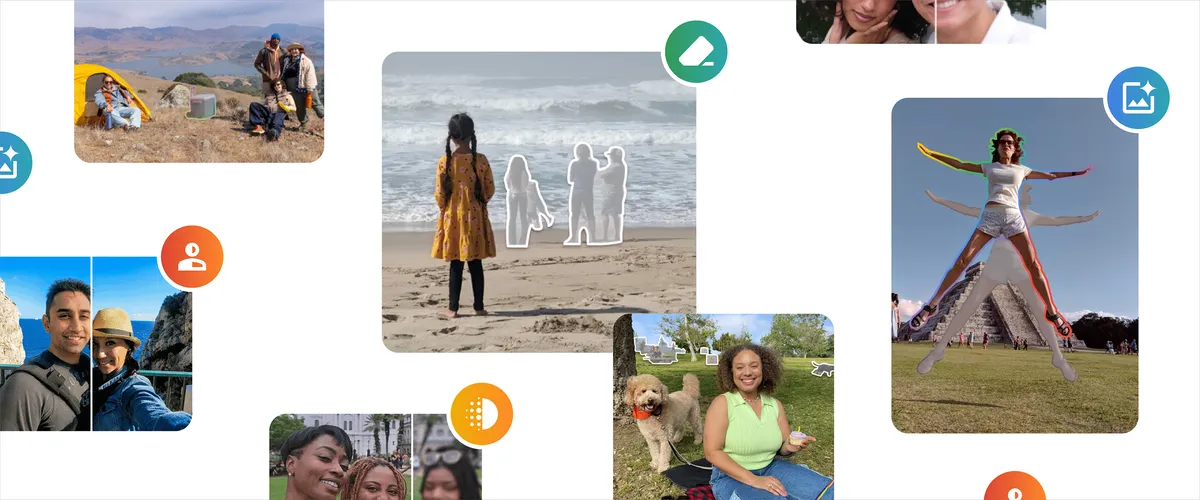
We recently announced that Google Photos’ AI editing tools – Magic Editor, Magic Eraser, Photo Unblur and Portrait Light – are coming to all Google Photos users1, no subscription required. These powerful features have been incredibly popular and highly anticipated by our wide community of Google Photos users. “It’s really exciting that so many more people will be able to use these tools,” says Google Photos senior product manager Selena Shang. The expansion was no easy feat. Our engineering and research teams worked to ensure that these features worked across a wide array of Android and iOS devices so that Google Photos’ suite of AI editing tools work well no matter what device you’re using. “It was definitely a challenge,” Selena says, “but worth it!”
Since Selena is an expert on the Google Photos AI editing suite and so many more people now have access to it, we asked for her top tips on using these tools.
1. Layer edits with AI — and traditional — tools to get the photo you want
“Some of the best edits I’ve made are those where I’ve layered edits both within Magic Editor and outside of it,” Selena says. For example, she’ll apply the Portrait preset within Magic Editor, clean up additional distractions after that using Magic Editor and finally adjust the overall tone and brightness of the photo in the regular editor. “Using the full range of tools at my disposal lets me unlock the potential in all of my photos,” Selena says.
2. Magic Editor’s Erase tool and Magic Eraser work best in different scenarios
Magic Editor has a suite of features, one of them being a generative AI-powered Erase tool. Both Magic Editor’s Erase feature and Magic Eraser can help you remove unwanted items from an image, but they each excel in different ways. “Magic Eraser works best for quick fixes on smaller portions of the photo,” Selena says. For example, landscape shots with people or objects in the background are great candidates for using Magic Eraser, and it's faster. If you have more prominent, complex foreground objects, or objects that take up a larger portion of the photo in general that you want to remove, Magic Editor’s generative AI is going to be more effective at filling the space, Selena explains. In general, it’s better at performing more complex erases.
3. Choose to tap, brush or circle items in Magic Editor
There are three different ways you can select items you want to adjust when you’re using Magic Editor: tapping, brushing or circling. While the method you use is up to you, Selena has found that, for her, certain methods work best for certain types of selecting. Objects with clear boundaries, like a water bottle in the foreground, are usually easier to tap. However, for objects with less distinct edges, like the leaves that make up a tree, it may be simpler to select them by circling or brushing. If that doesn’t work, you can zoom in on the portion you want to select to use an even more precise selection tool.

In Magic Editor, you can choose to tap, circle or brush to select.
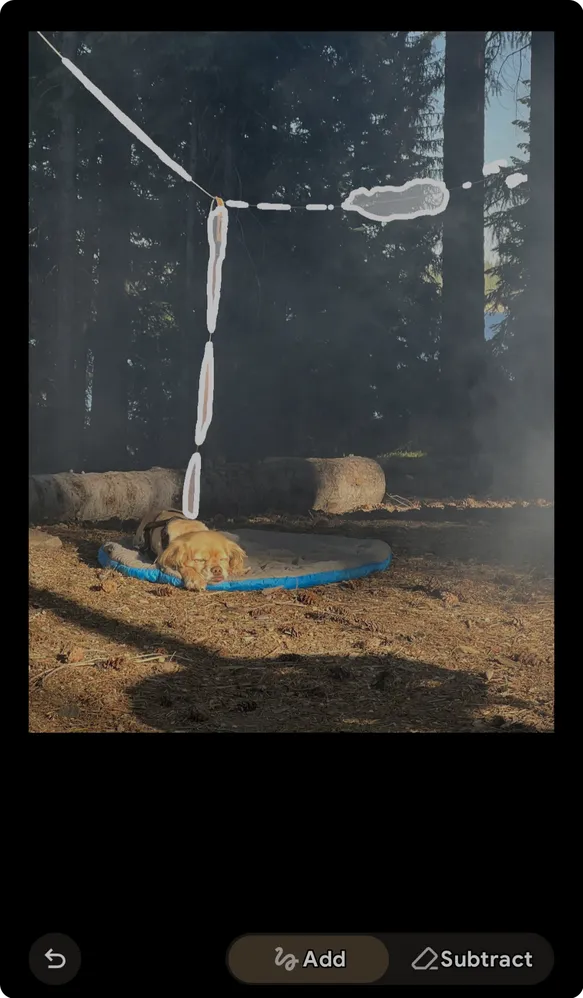
I wanted to get rid of this leash and tether from this cute photo of my dog, So I brushed over pieces of the object and adjusted until I selected as much as I liked.

And here’s the final version.
4. Don’t forget about the strength slider
Google Photos’ AI editing tools are super fun to use and turn out incredible images — but you can still fine-tune the result to your liking. Various AI editing tools have a strength slider so you can adjust the intensity of an effect. “After applying Portrait Light, I’ll play with the strength because sometimes I want the effect to be a little more subtle,” Selena says. The same is true for Photo Unblur: Photos’ AI will create a crisp subject, but if you were actually looking for a bit of artistic fuzziness, you can open the strength slider to adjust the blurriness as you like. And that’s the whole idea behind Google Photos’ AI tools, Selena says: What your photos look like is up to you — now you just have a bigger (and smarter) toolkit.







 English (United States) ·
  French (France) ·